To enhance the effectiveness of your Task Card View, you can personalize the information displayed. Here’s how you can customize your Task Card View:
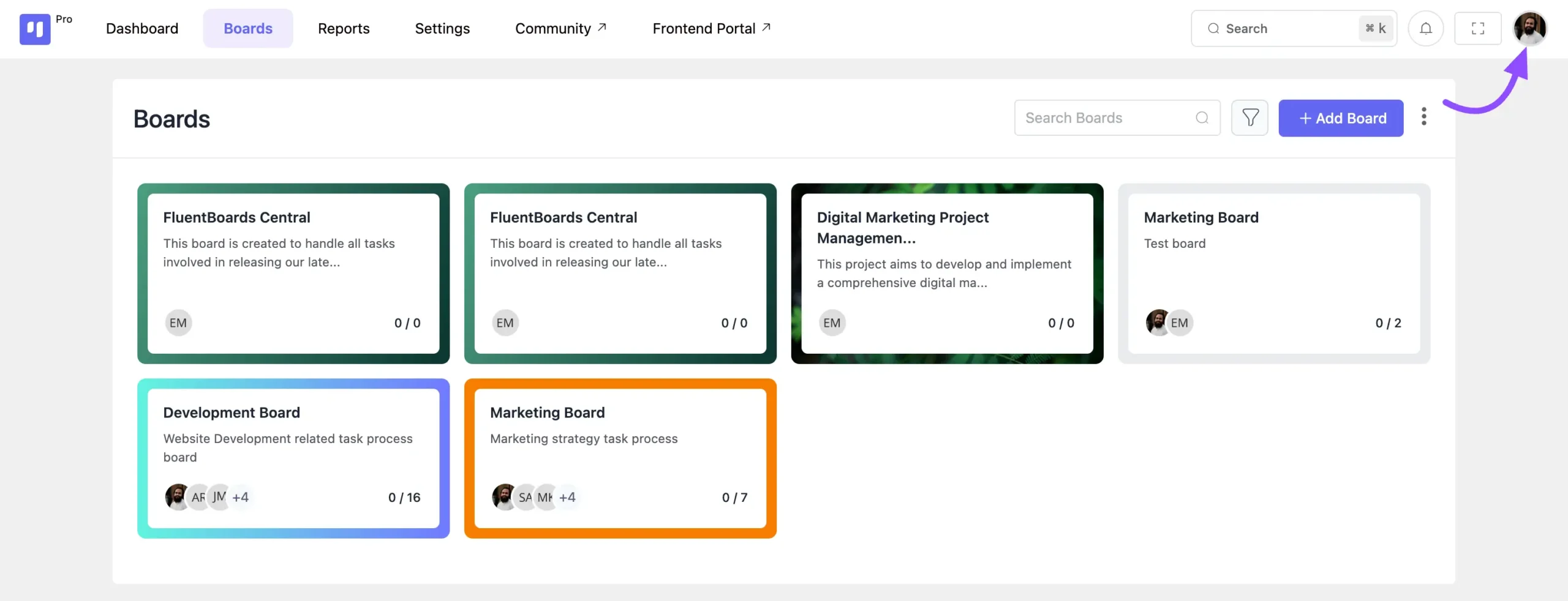
Go to your FluentBoards Dashboard and click on your Profile from the top right corner.
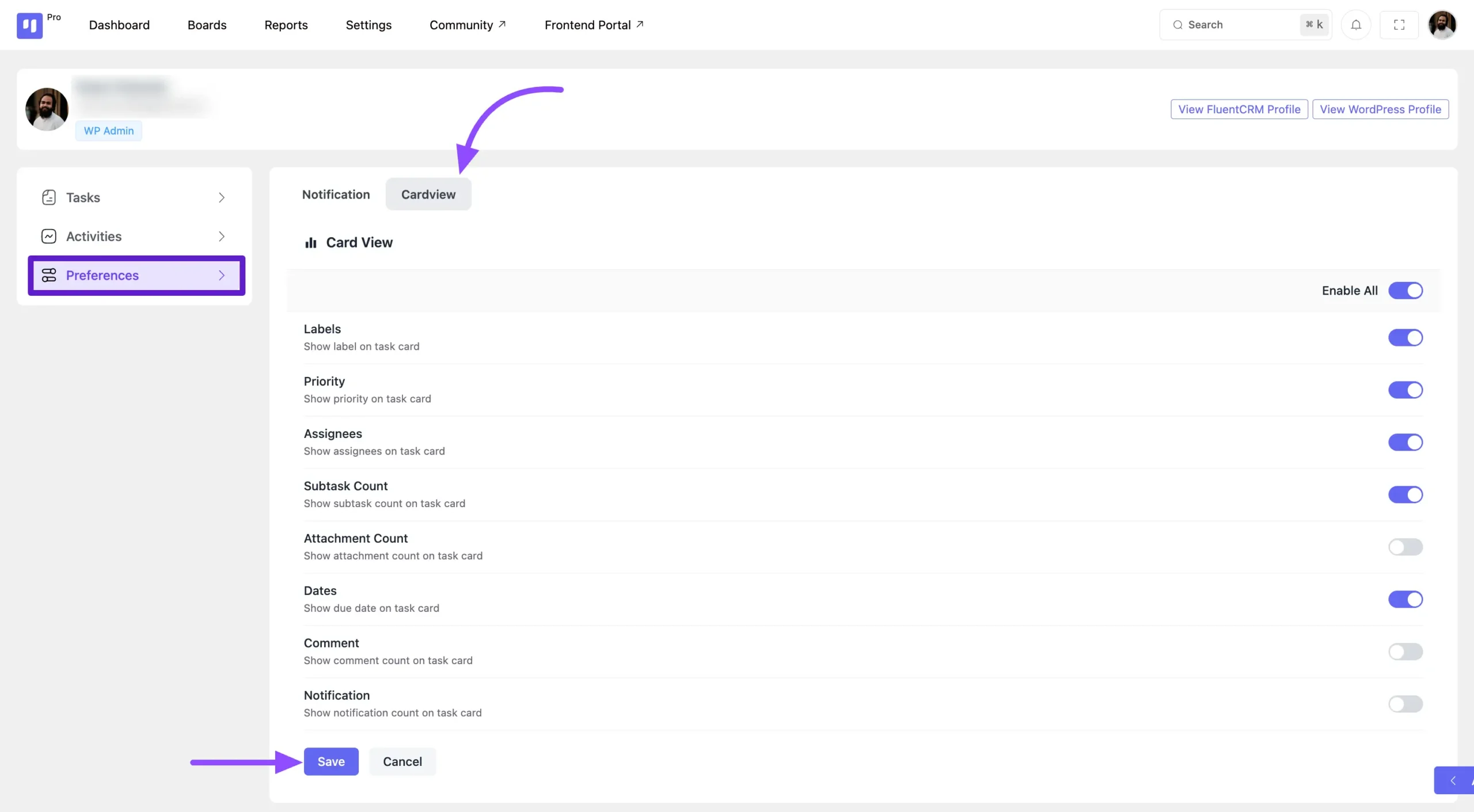
Your profile will appear, now click on Preference from the left sidebar. Next, you’ll see the Card View option click on it. Here, you’ll find all the settings for viewing your cards. Simply toggle to enable or disable the options as needed. Finally, click the Save button to apply your changes.
As an example, we’re displaying a task card below.
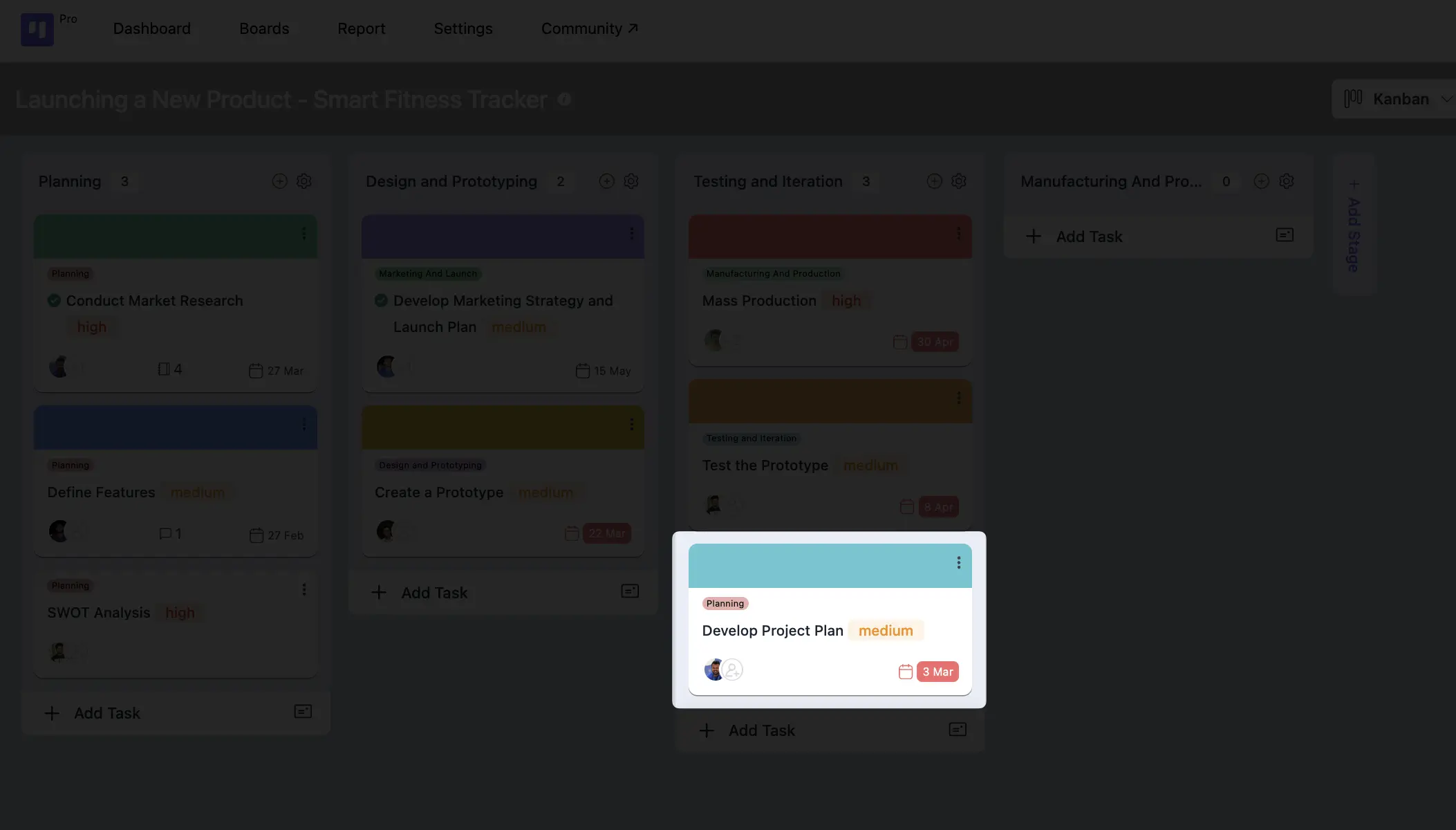
That’s all it takes to personalize your FluentBoards Card View.