If you have a form on your website and want to automatically add a task to your DPMS (Powered by FluentBoard) board, you can easily do so using Fluent Forms.
In this guide, we will walk you through the simple process of configuring FluentBoards integration with Fluent Forms for seamless task management.
Enable FluentBoards Modules #
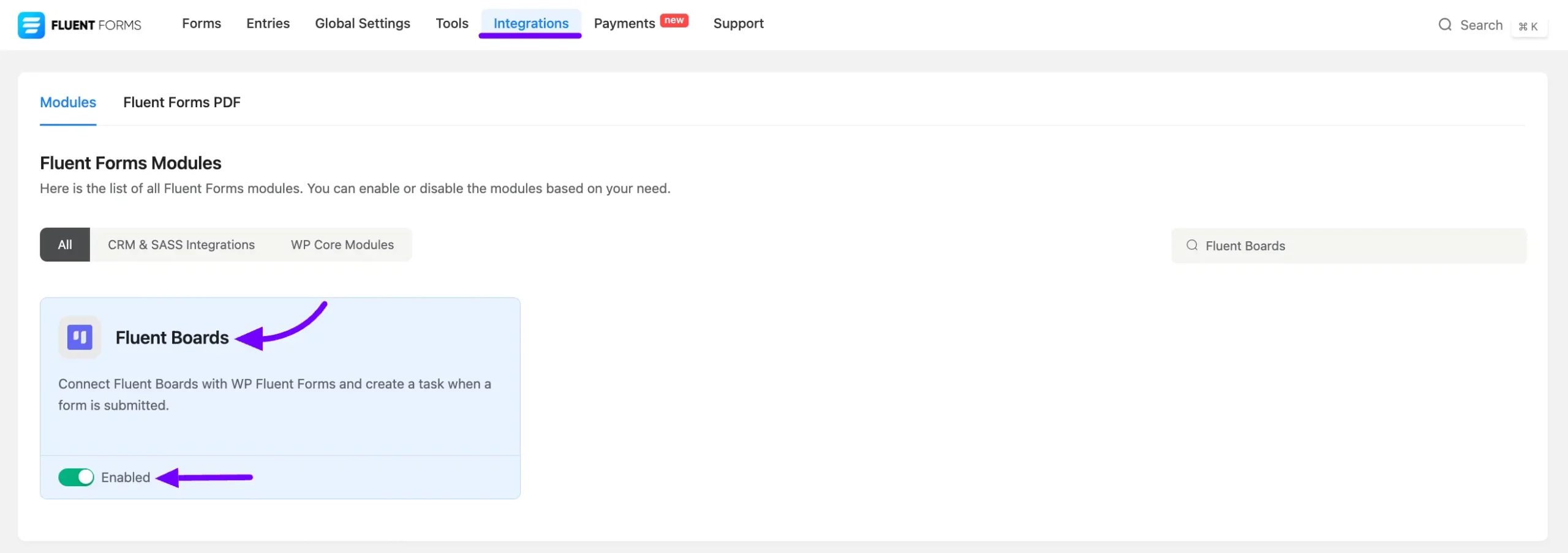
To integrate FluentBoards with Fluent Forms you need to go to the Fluent Forms Integration and then activate the FluentBoards Module. Toggle to enable the Fluent Boards Module.
Integration with Form #
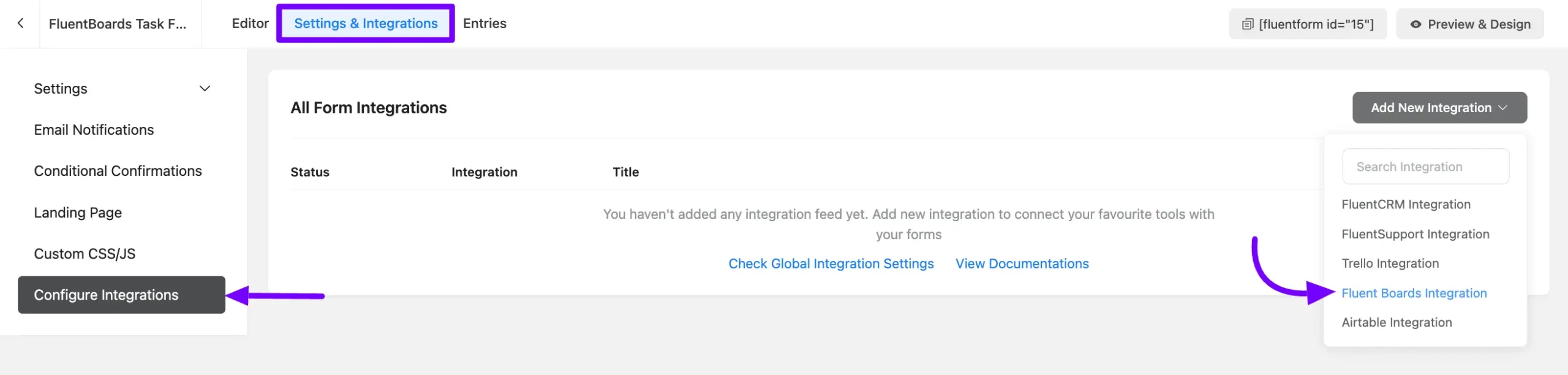
Now go to the Specific Form where you want to integrate the FluentBoards. Go to the Settings & Integration of that form and click on Configure Integration.
Here you will find the Add New Integration button select it. Now you will see the FluentBoards Integration here, click on it to open the FluentBoards Integration Feed.
Configure FluentBoards Integration Feed #
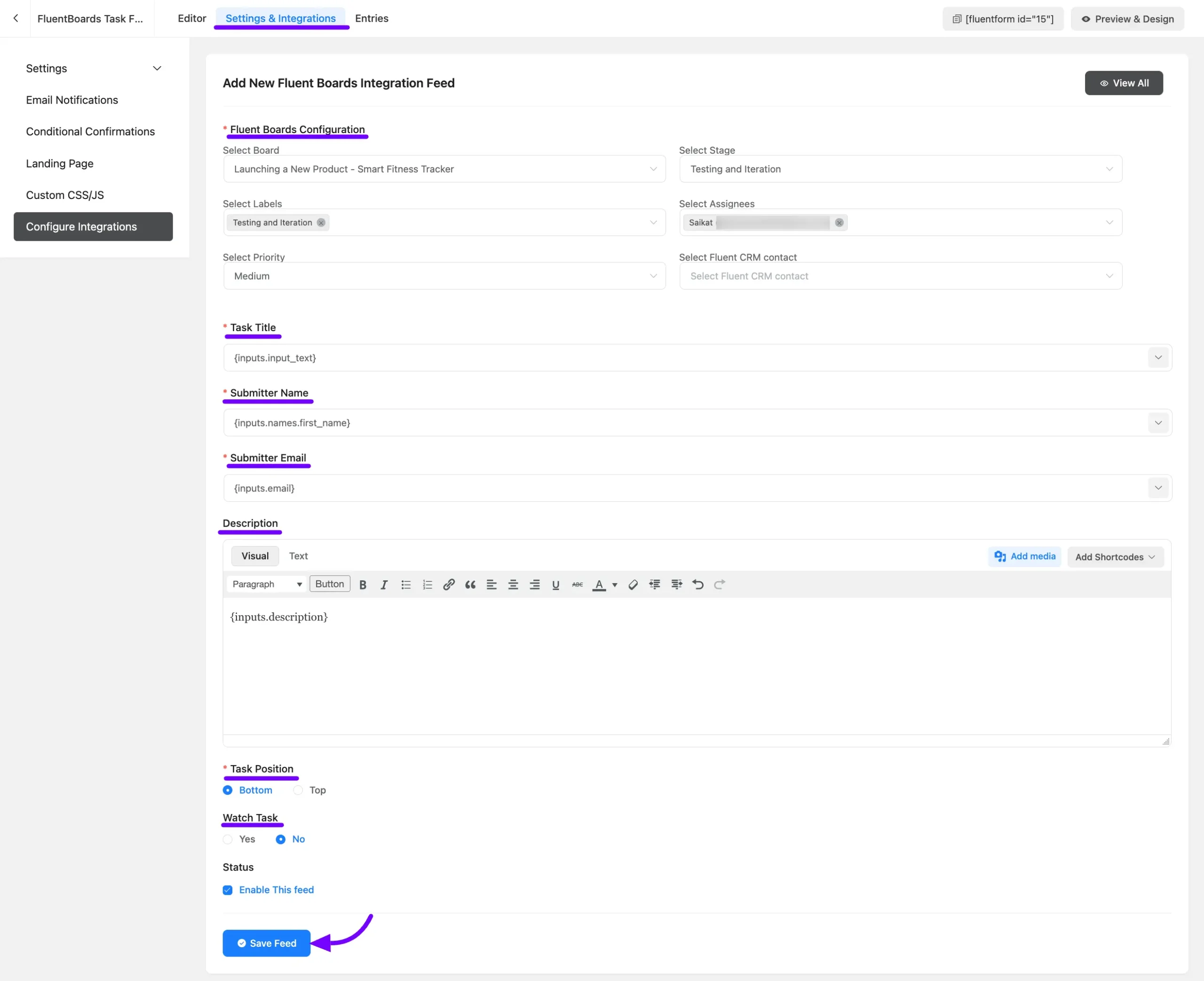
Now here you need to configure your FluentBoards Integration Feed to add a Task from your Fluent Forms to FluentBoard.
FluentBoards configuration: In the FluentBoards configuration fields, you can select Board, Stage, Labels, Assignees, Priority, and FluentCRM Contact from the dropdown list.
Task Title: Here you can select a Fluent Forms field with the Shortcode to add as a Task Title.
Submitter Name: Select the user name field Shortcode to get the Submitter Name.
Submitter Email: You can gather the Submitter’s Email using Shortcode, which will be matched with a contact in the CRM. If the email belongs to a CRM contact, they will be automatically linked with the task.
Description: Description will be added as Task Description.
Task Position: You can select the Task Position in the stage from here.
Watch Task: You have the option to enable the Watch Task feature for the task from here.
Status: Enable this feed if you want to create a Task with this Form.
Click on the Save Feed button to save this FluentBoards Integration Feed.
Now, your task will be automatically generated upon form submission and placed into the board and stage you’ve chosen.