Powered by FluentBoard, DPMS allows NGOs to automate repetitive tasks using the Recurring Task feature. This ensures that tasks scheduled at regular intervals (daily, weekly, monthly, or yearly) are automatically recreated—eliminating the need for manual task creation.
How to Enable Recurring Tasks #
To set up a Recurring Task in DPMS:
1️⃣ Open your Board and select the task you want to repeat.
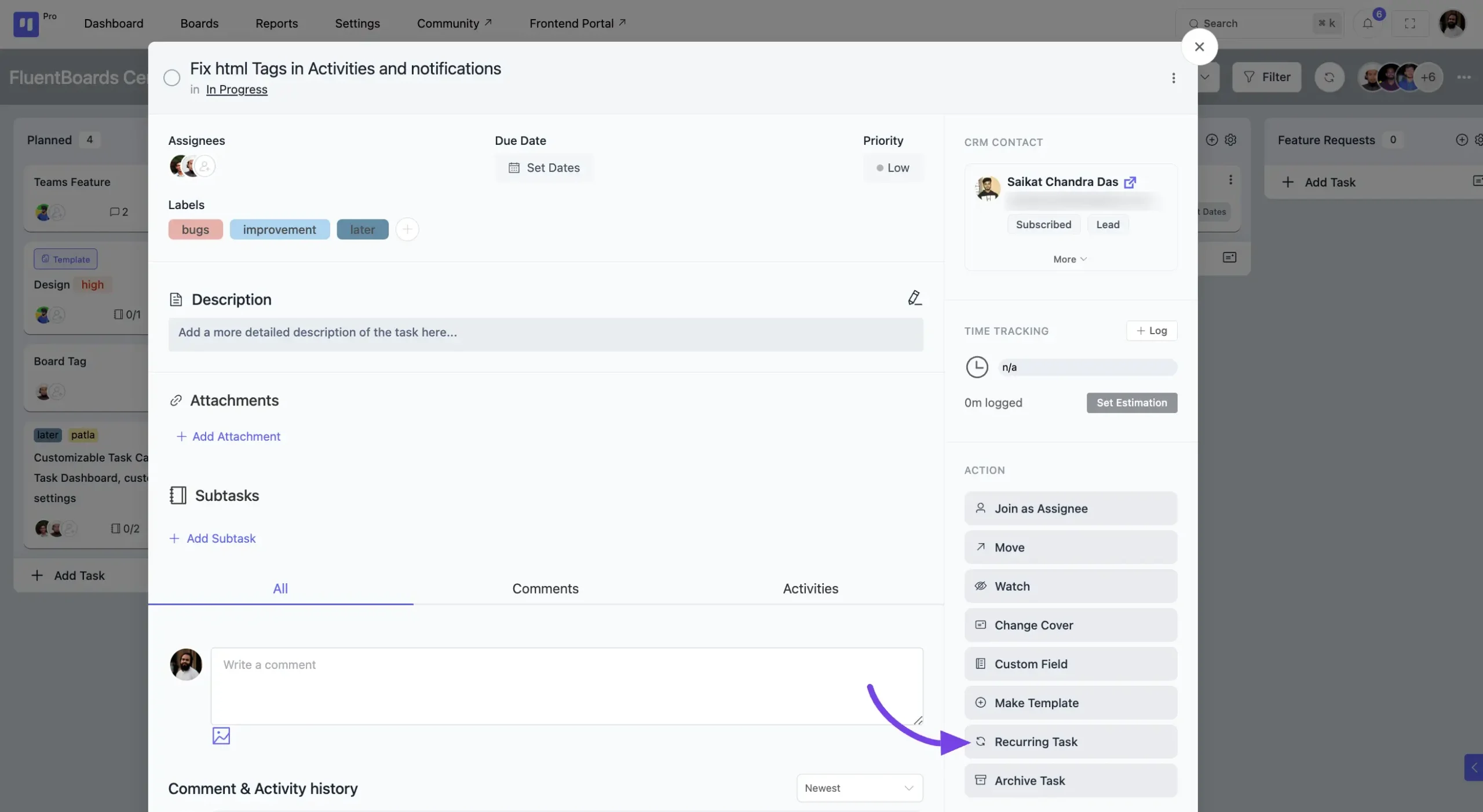
2️⃣ Click on the Recurring Task option.
3️⃣ Choose the repetition interval: Daily, Weekly, Monthly, or Yearly.
4️⃣ Set the start date and define any end conditions (if applicable).
5️⃣ Click Save, and DPMS will automatically generate the task at the specified intervals!
Why Use Recurring Tasks? #
✔️ Saves time by automating repeated work.
✔️ Ensures consistency in task scheduling.
✔️ Helps NGOs stay organized without missing routine tasks.
With DPMS (Powered by FluentBoard), NGOs can focus on impactful work while DPMS handles recurring task management seamlessly! 🚀
Enable Recurring Task #
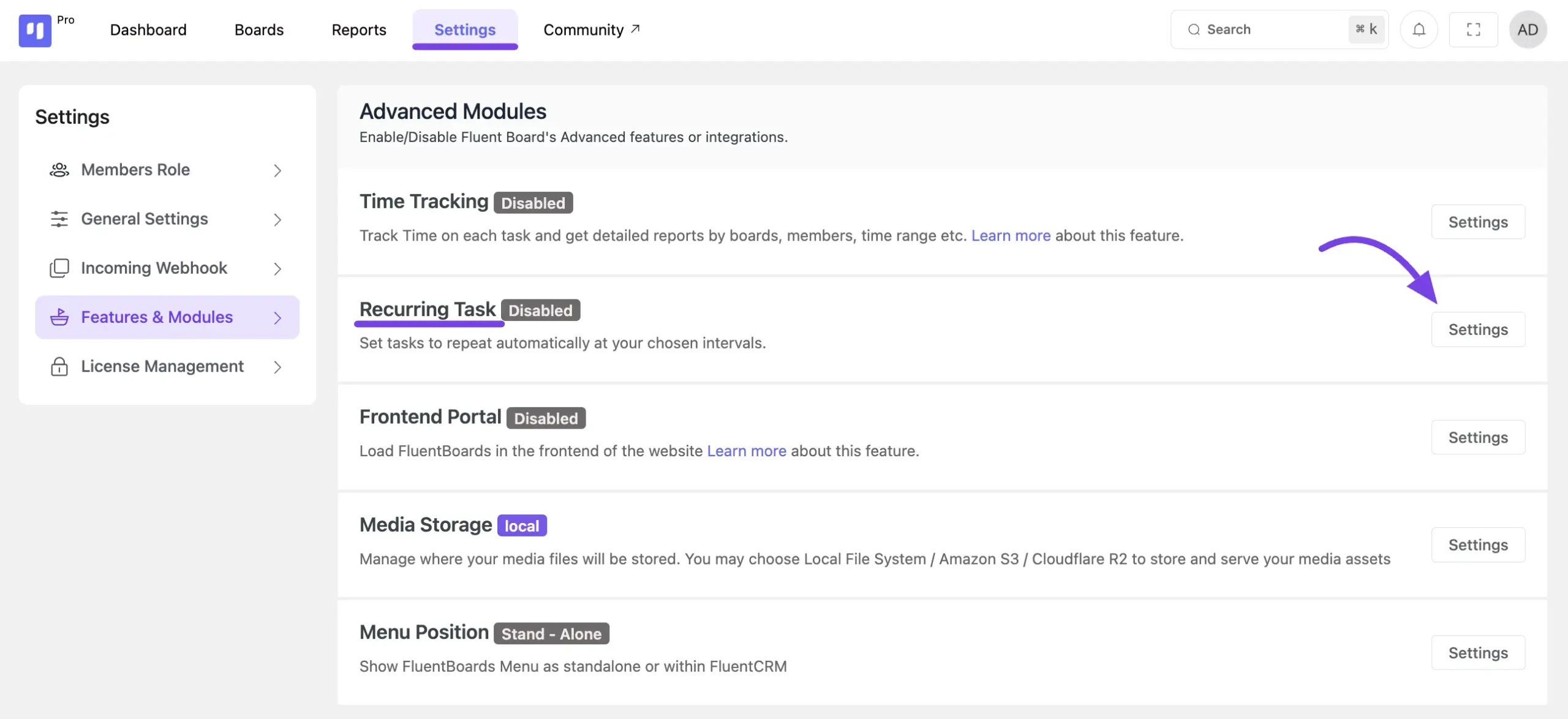
First, go to the Settings of Fluent Boards and select Features and Modules from the right sidebar. Locate the Recurring Task option, then click the Settings button next to it.
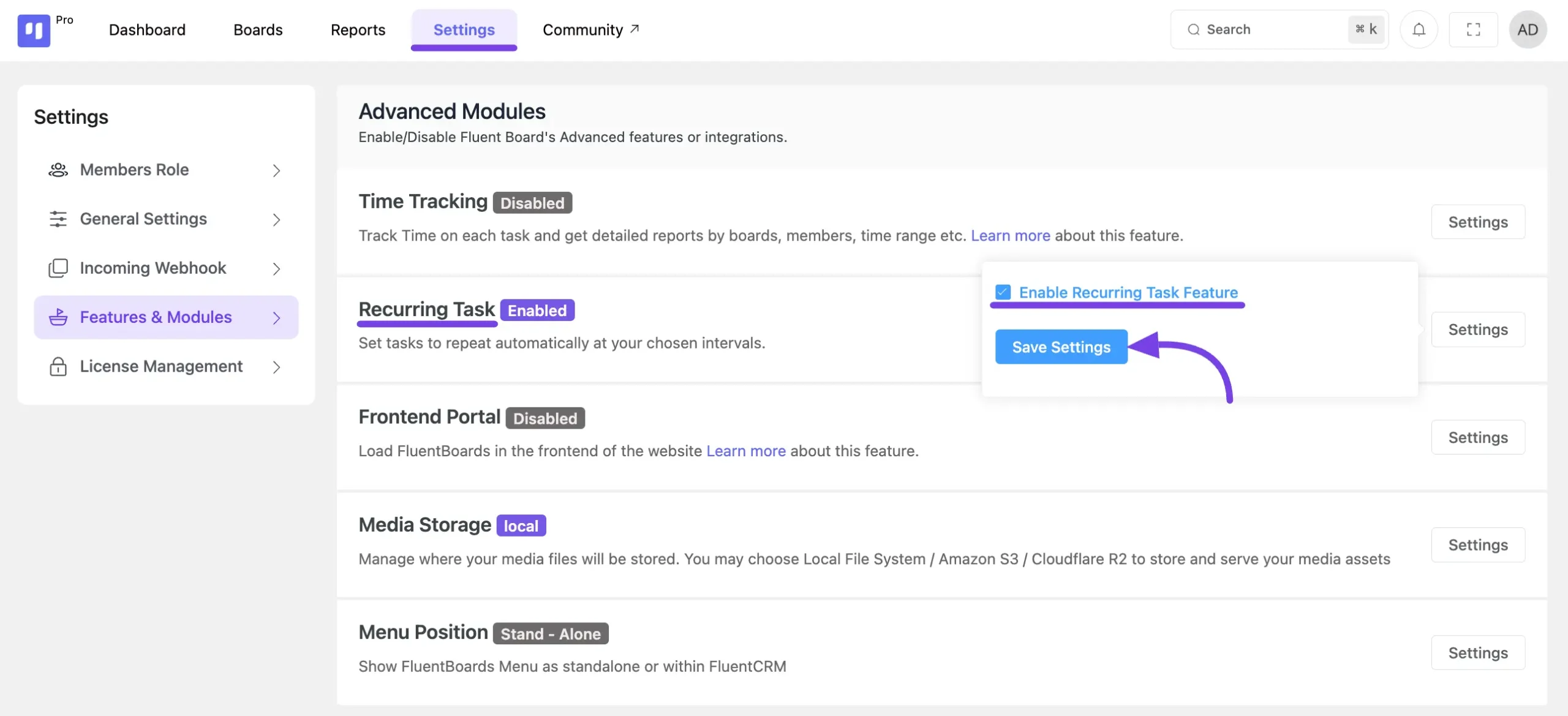
Here check the Enable Recurring Task Feature checkbox and click on the Save Settings button.
Setting Up a Recurring Task #
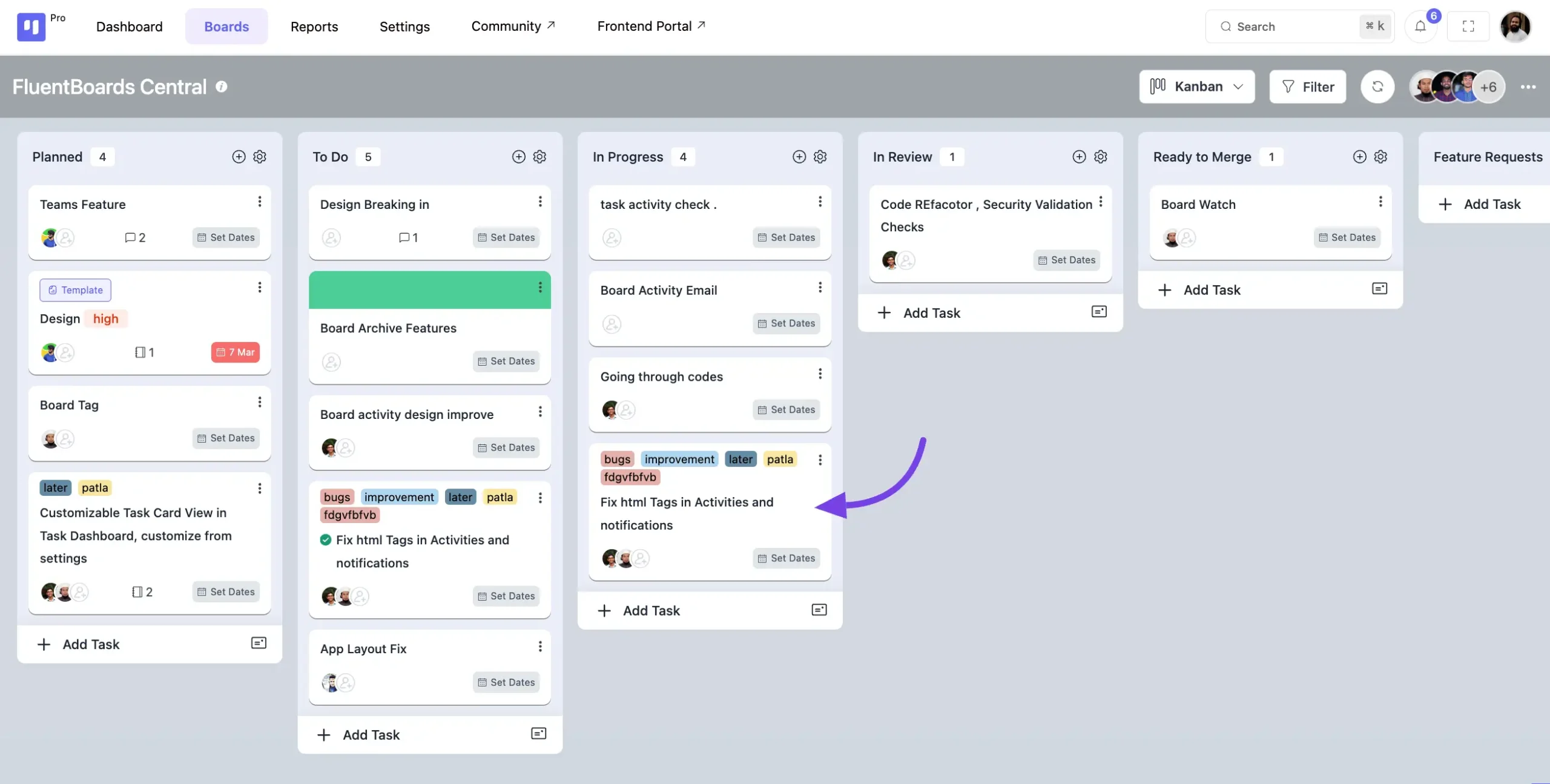
Start by creating a new task or choosing an existing task that you want to set to repeat.
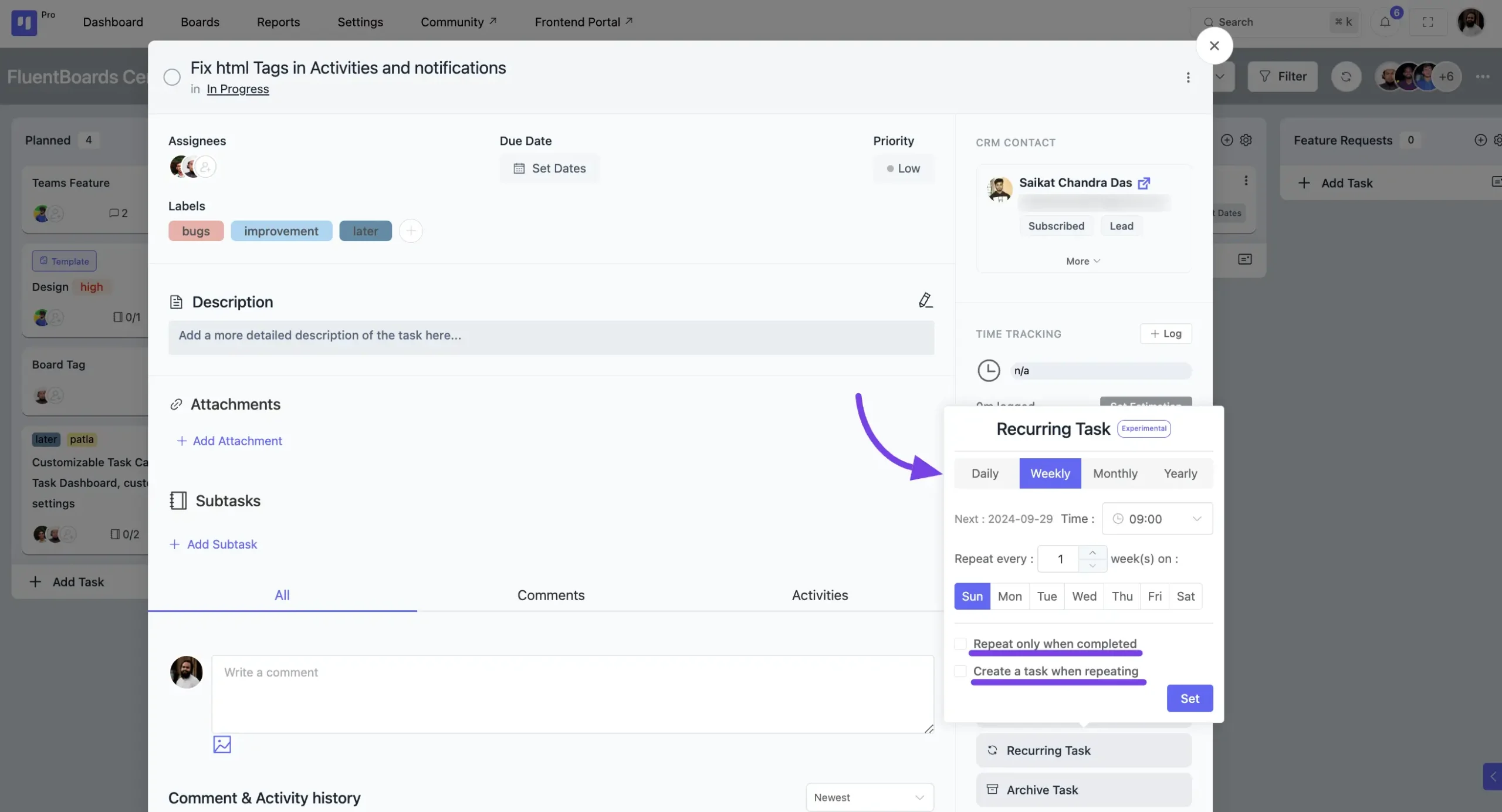
In the task settings, you’ll find an option labeled Recurring Task click on it.
Set the Frequency #
Choose how often you’d like the task to be repeated:
- Daily: The task repeats every day at your chosen time.
- Weekly: Select specific days of the week for the task to repeat, and set the preferred time.
- Monthly: The task repeats every month on the selected date and time, with additional customization options.
- Yearly: Schedule the task to repeat annually on a specific date you’ve set.
Repeat only when completed: If you enable this option, the task will only repeat once it is completed and reaches the repeat date you’ve set.
Create a task when repeat: This option automatically generates a new task at the set repeat interval (daily, weekly, monthly, yearly.). Each new task inherits the original settings like assignees, due dates, and descriptions, ensuring your recurring tasks are consistently recreated without manual effort.
Examples & Use Cases #
Weekly Meetings: Set up a recurring task for your weekly team meeting, including an agenda and assigned members.
Monthly Reports: Automate your monthly reporting tasks so they’re created at the start of each month without needing manual input.
Follow-up Reminders: Need to follow up with a client every few days? Set it as a recurring task to never forget.