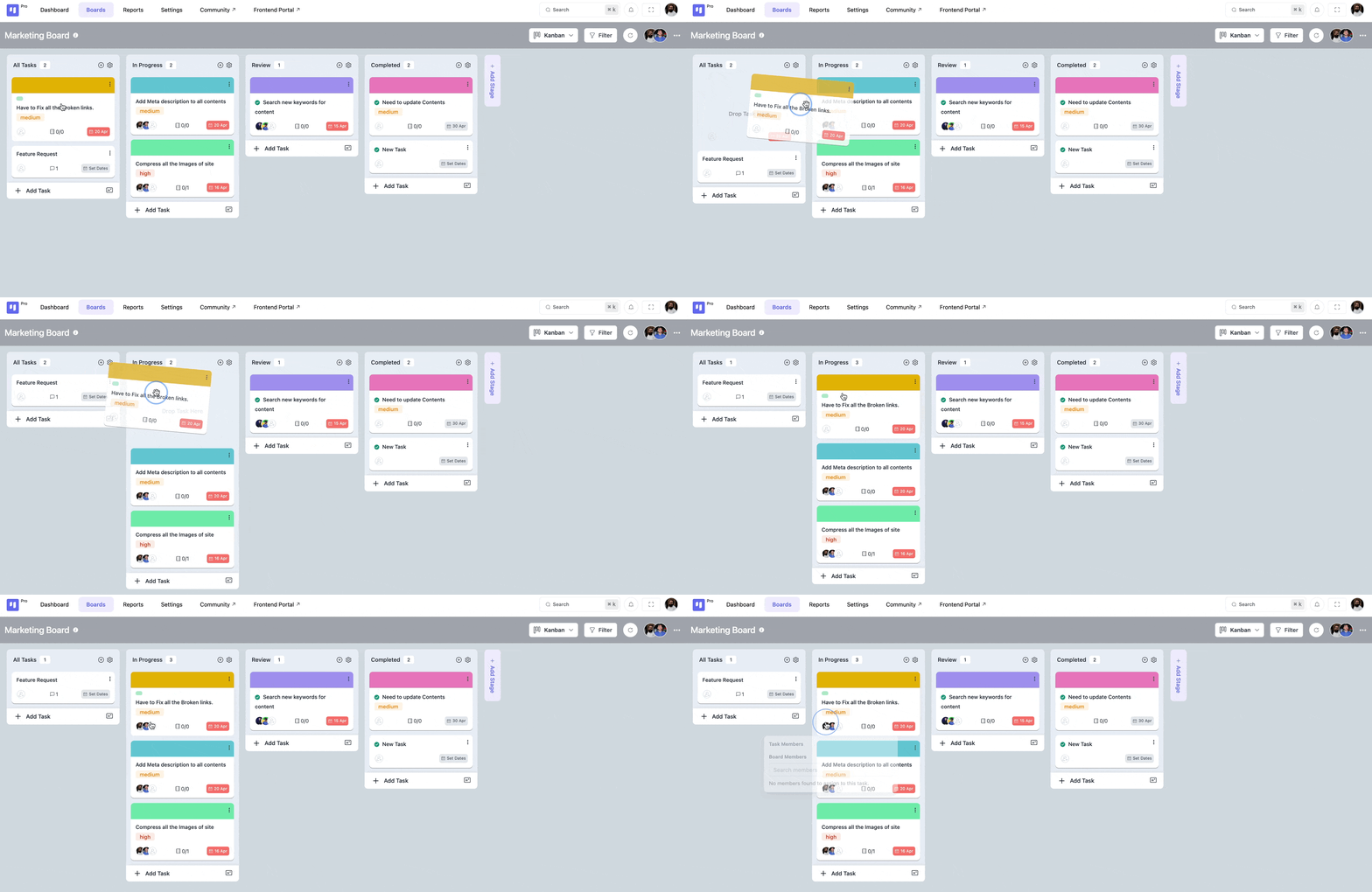
Powered by FluentBoard, DPMS allows NGOs to automate task assignments by setting default assignees for specific board stages. When a task moves to a particular stage or is created within it, the assigned members are automatically added and notified—ensuring smooth workflow management.
How to Set a Default Assignee for a Stage #
To assign default members to a board stage in DPMS:
1️⃣ Open your Board and navigate to the desired Stage.
2️⃣ Click the Settings icon at the top of the stage.
3️⃣ Select Default Assignees from the options.
4️⃣ Choose one or more team members to be automatically assigned to tasks in this stage.
5️⃣ Click Save, and your settings will be applied!
Benefits of Using Default Assignees #
✔️ Saves time by automating task assignments.
✔️ Ensures accountability, as assigned members receive instant notifications.
✔️ Supports team collaboration, allowing multiple default assignees per stage.
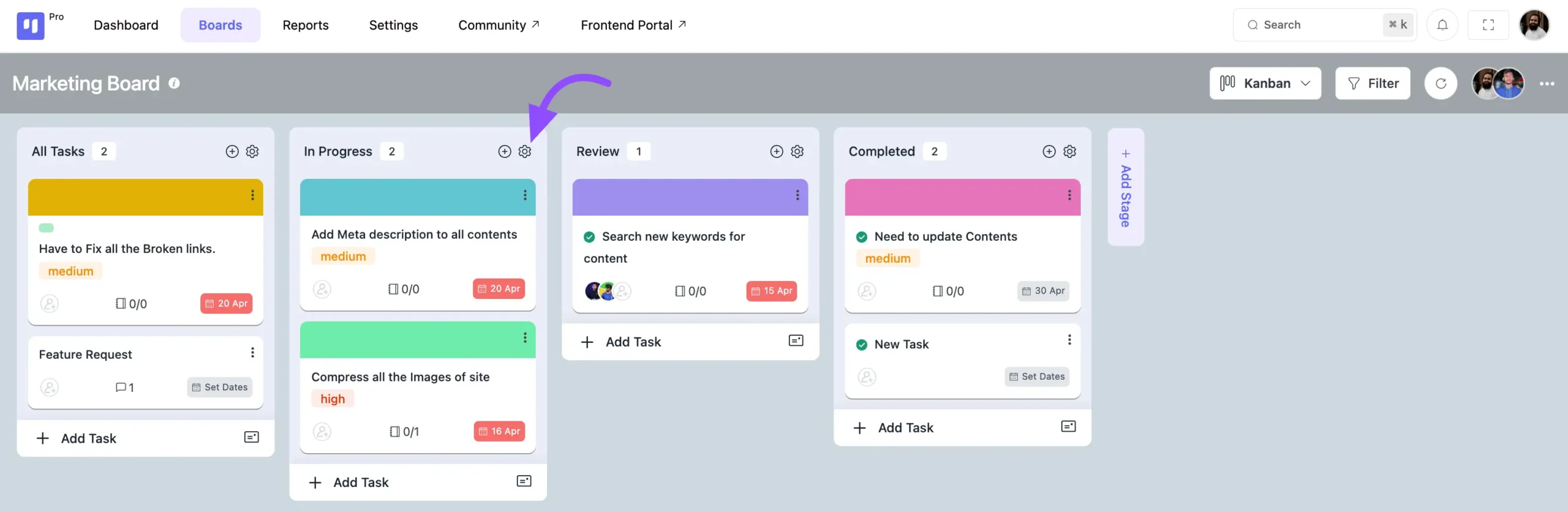
Navigate to the specific stage, and click the Settings icon at the top of the stage.
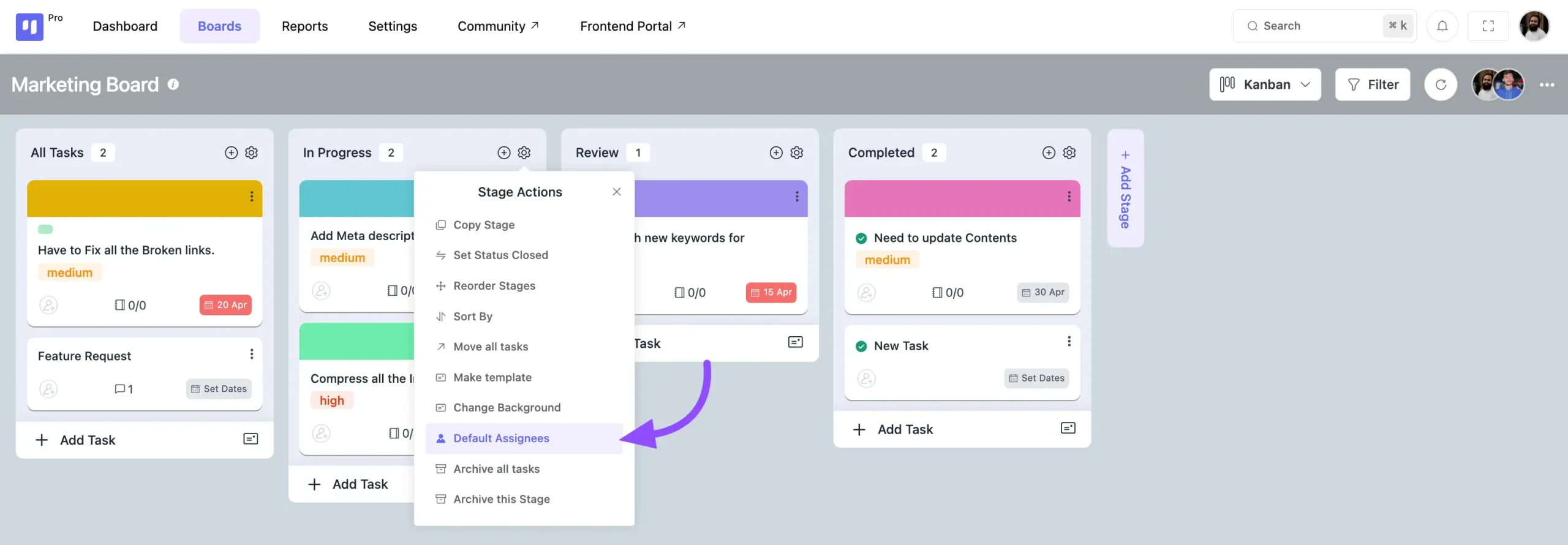
A popup will appear. Locate and click on the Default Assignee option.
Another popup will display a list of board members. Simply click the Plus icon next to the members you want to assign as default. Use the search bar to find members easily if needed.

When a task is moved from another stage to the one with default assignees, the selected members will automatically be added as assignees, as shown below: