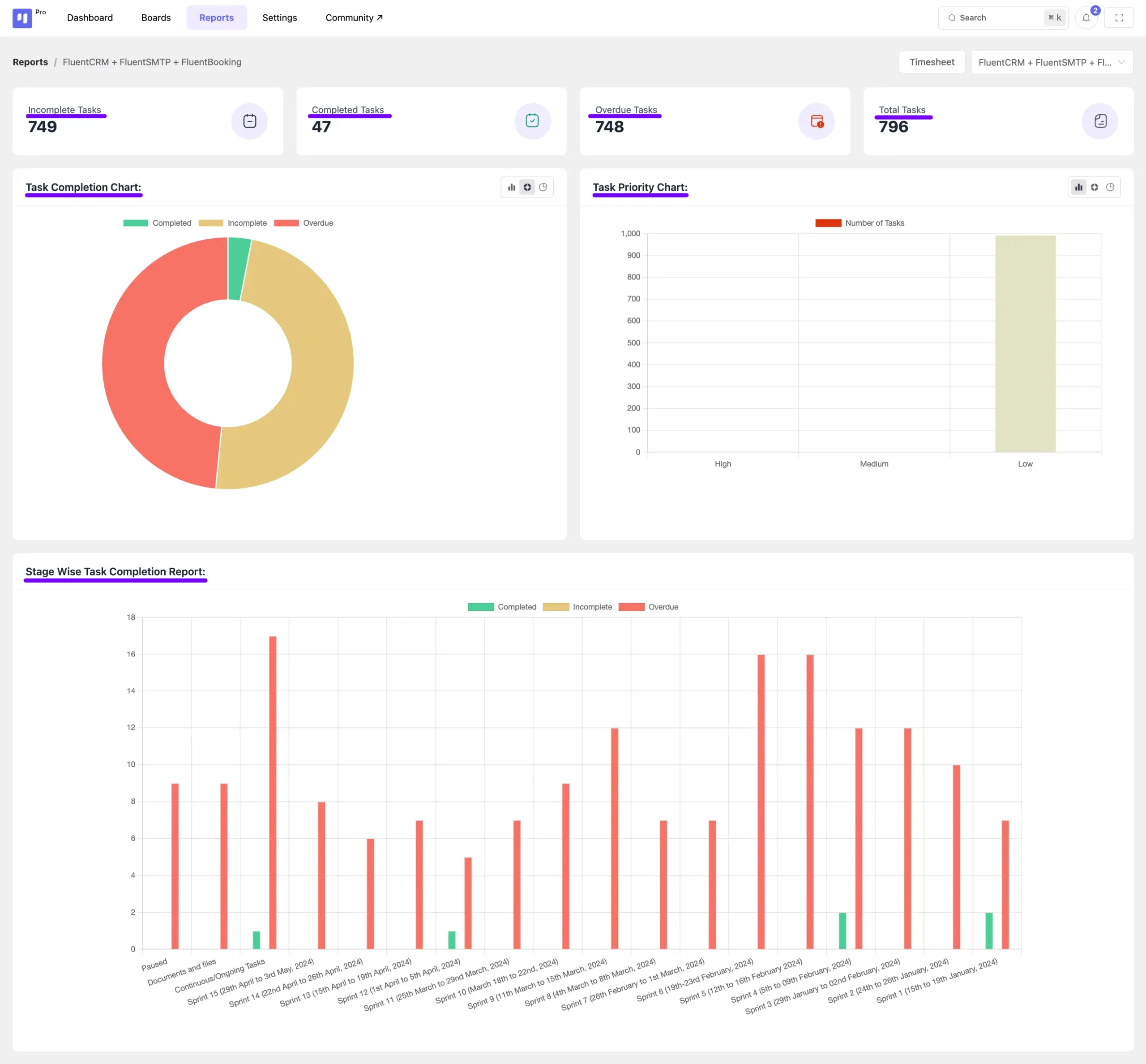
Powered by FluentBoard, DPMS offers a detailed reporting system that helps NGOs track task progress, analyze workflow efficiency, and gain insights into overall project management.
Accessing Reports #
To access reports in DPMS:
1️⃣ Navigate to DPMS Dashboard.
2️⃣ Click on the Reports section from the menu.
3️⃣ View comprehensive task summaries and visual analytics.
Available Reports in DPMS #
📌 Incomplete Tasks – Lists all tasks that are still in progress.
📌 Completed Tasks – Displays a summary of completed work.
📌 Overdue Tasks – Highlights tasks that have passed their deadlines.
📌 Total Tasks – Shows the total number of tasks within a board.
📌 Task Completion Chart – Visual representation of task completion (available in Bar, Pie, and Donut chart formats).
📌 Task Priority Chart – Graph showing the priority levels of tasks.
📌 Stage-wise Task Completion – Breakdown of task progress across different workflow stages.
Why Use Task Reports? #
✅ Helps NGOs monitor project timelines efficiently.
✅ Provides clear insights for better decision-making.
✅ Enhances productivity with data-driven analysis.
With DPMS (Powered by FluentBoard), NGOs can easily track performance and optimize project execution for maximum impact! 🚀
Board and Stage Selection #
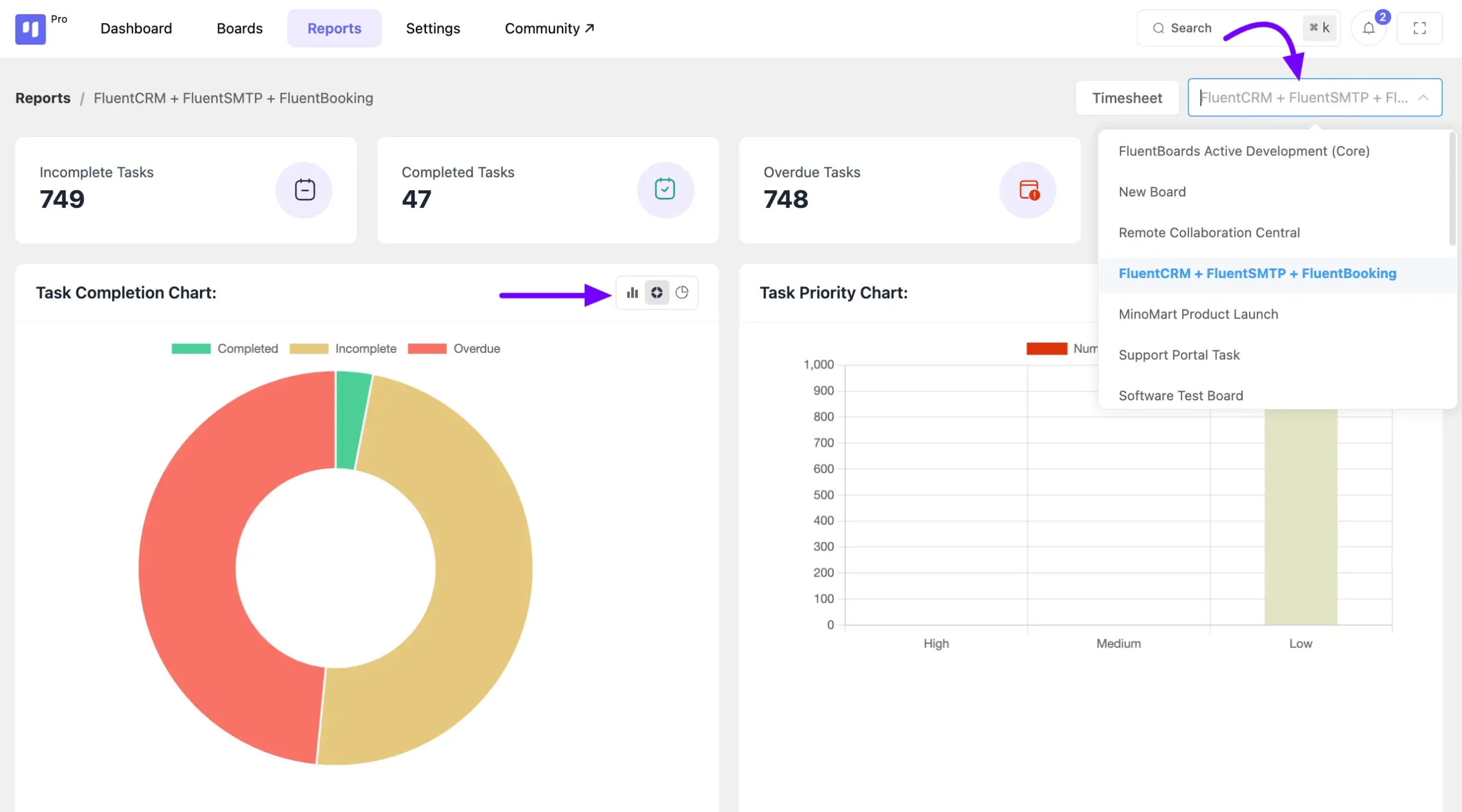
In the task report section, you’ll find a dropdown field on the top right to select specific Boards to display their reports.
The report sections feature three types of visual graphs: Bar, Pie, and Donut charts.
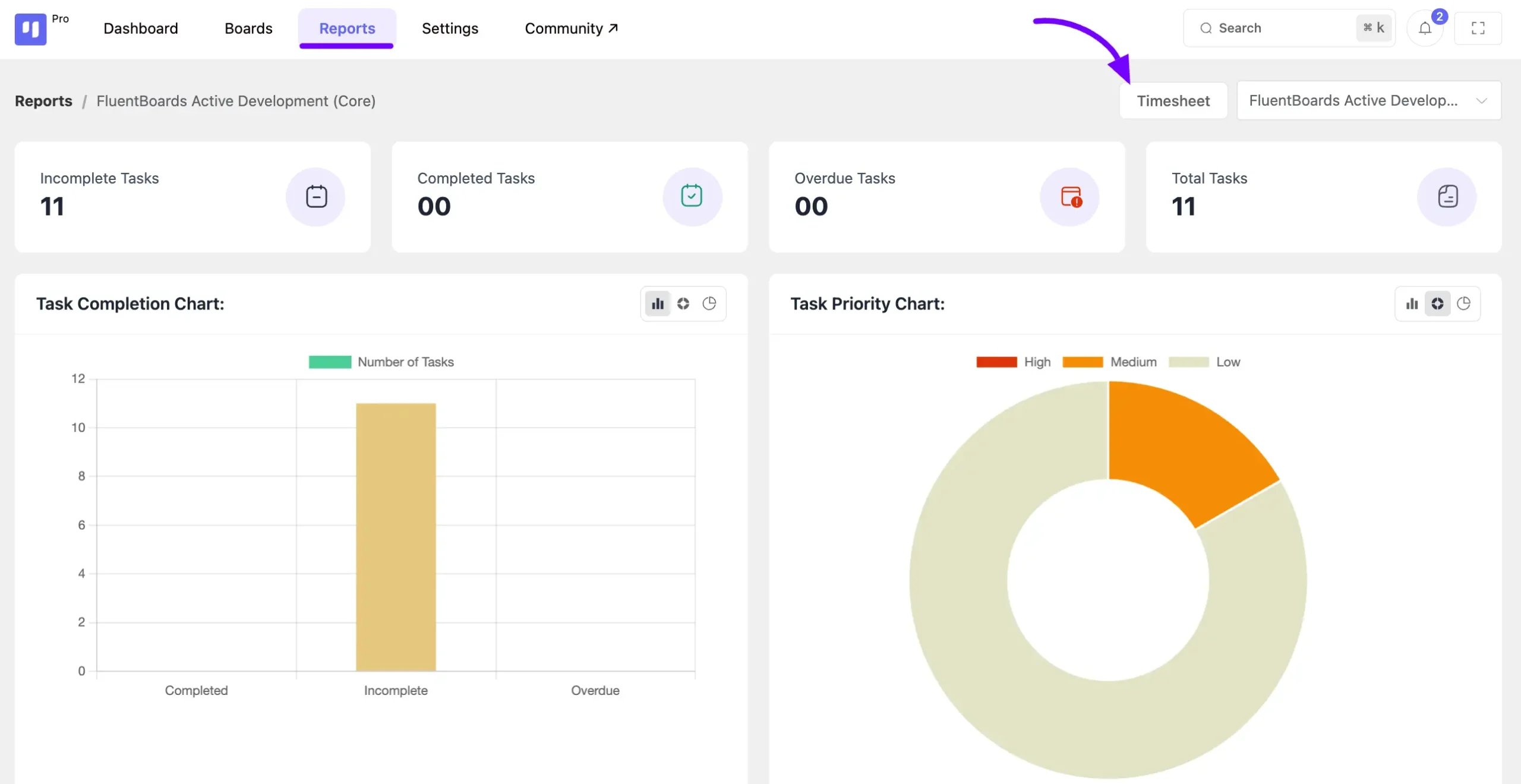
Timesheet #
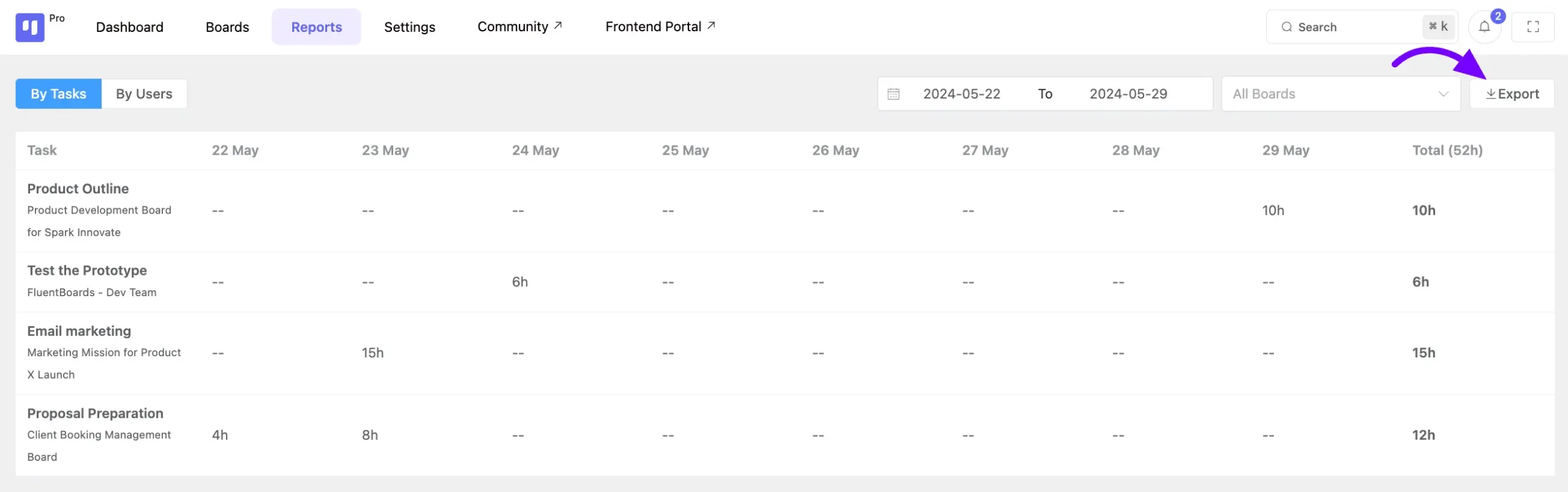
The Timesheet displays the time your board members have spent on tasks. This report is based on the estimated time and logged time set in each task.
Click on the Timesheet button in the Reports section, and the Timesheet page will appear.
From the Timesheet page, select the specific board from the dropdown menu to view the timesheet or work log of the board members. To see timesheets based on individual tasks, click on the By Task button.
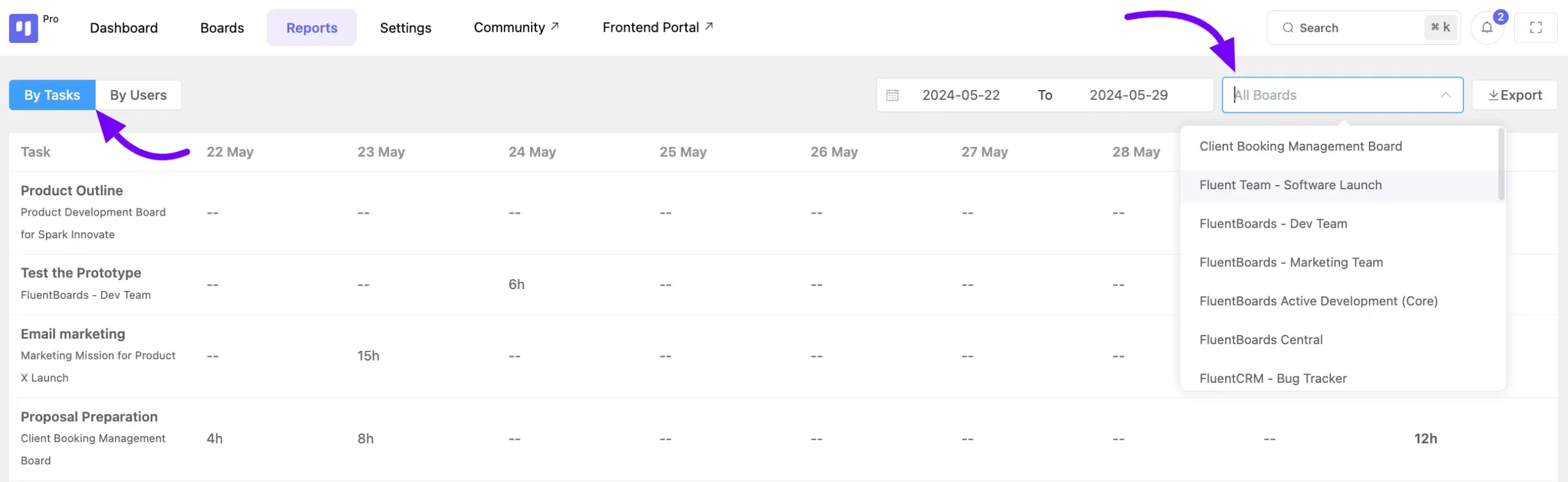
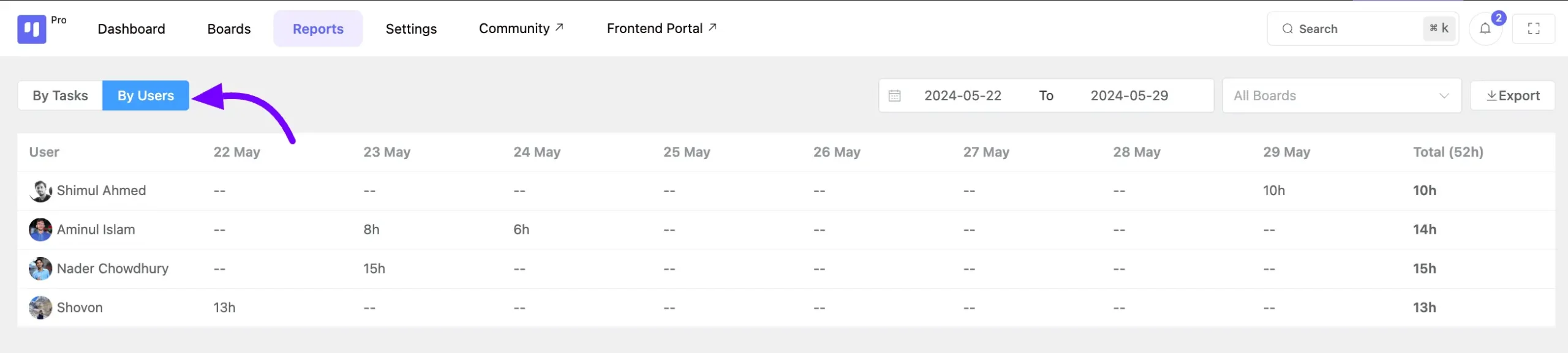
Click on this By User button to see the Timesheet based on user.
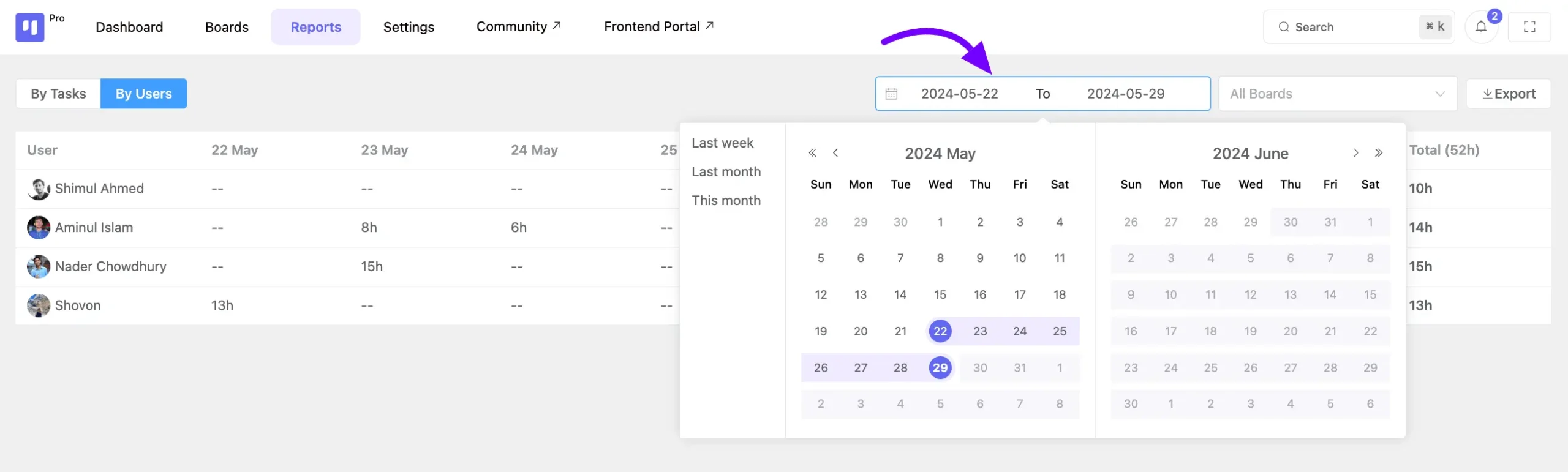
Here you will get a Date Filter option so you can see the timesheet of your board members in a more specific way.
You can export your timesheet in CSV format by clicking on this Export button.