Powered by FluentBoard, DPMS includes a Time Tracking feature that allows NGOs to monitor work hours spent on each task. This ensures better project planning, accountability, and efficiency in managing workflows.
How Time Tracking Works #
With DPMS Time Tracking, you can:
✔️ Log work hours for specific tasks
✔️ View detailed time logs with descriptions of progress
✔️ Analyze effective work hours for better project management
Enabling Time Tracking #
To enable and use Time Tracking in DPMS:
1️⃣ Open the Board and select the task you want to track.
2️⃣ Click on the Time Tracking option.
3️⃣ Start the timer when working on the task.
4️⃣ Add descriptions to track task progress.
5️⃣ Stop the timer when the task is completed.
Why Use Time Tracking? #
⏳ Helps NGOs measure efficiency and optimize work hours.
📊 Provides insights into task completion timelines.
✅ Enhances productivity by keeping track of actual work done.
With DPMS (Powered by FluentBoard), NGOs can better manage resources and improve workflow efficiency. 🚀
Enable Time Tracking #
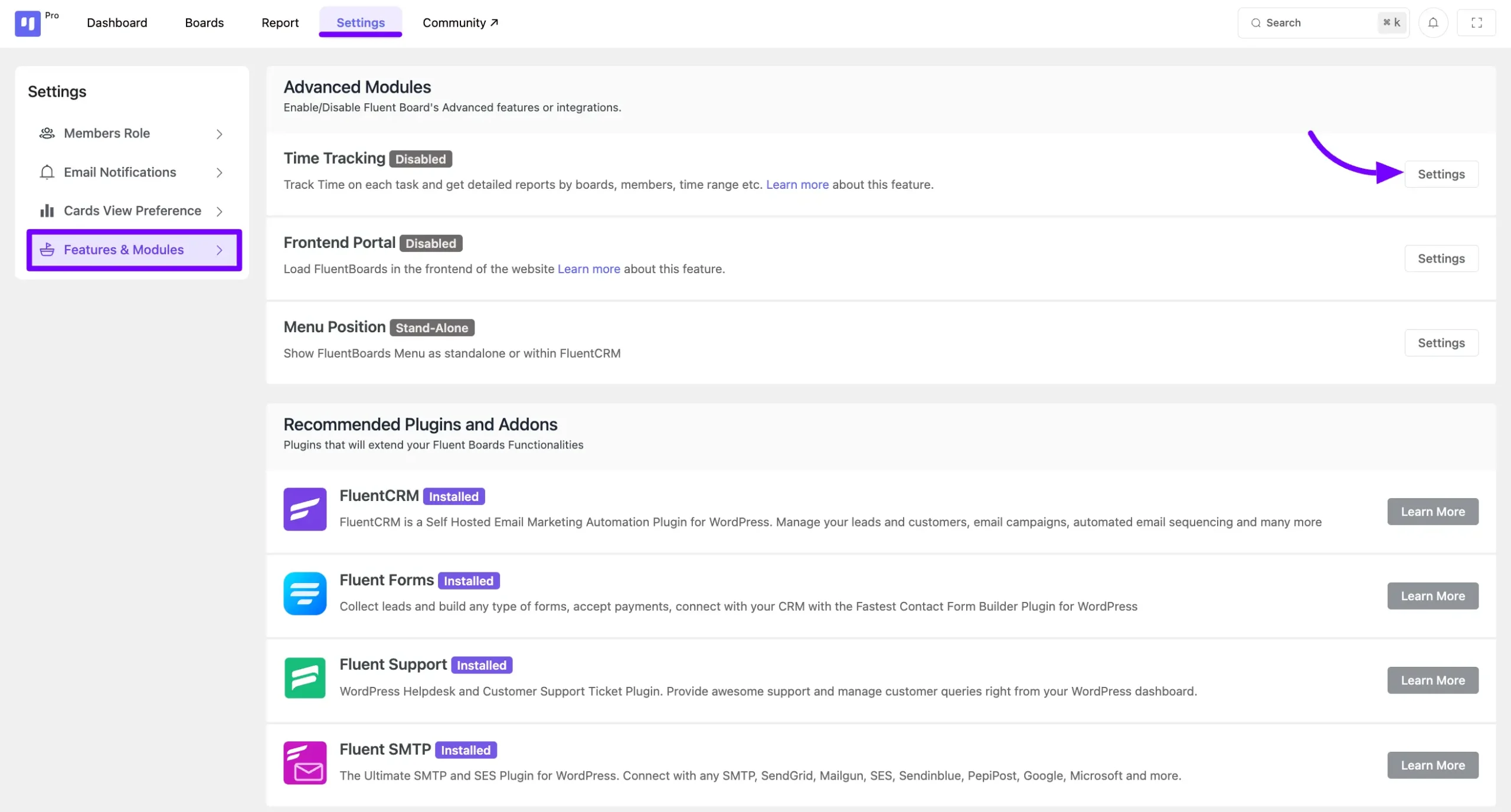
To enable the time tracking module for your Board tasks, go to the Settings of your FluentBoards and select Feature & Module.
Find the Time Tracking option and click on the Settings button.
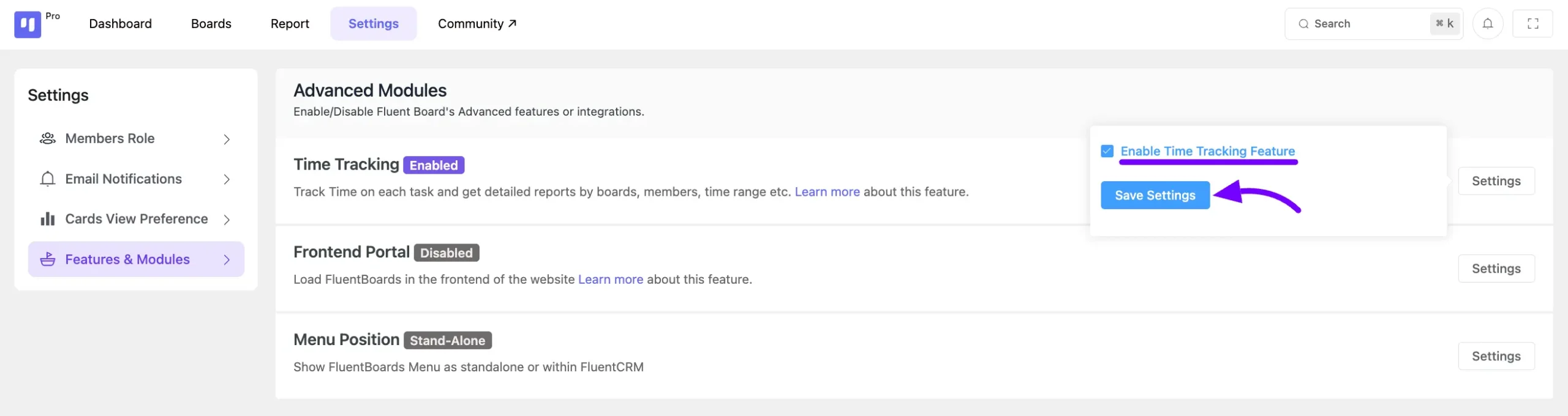
A pop-up will appear with a checkbox to enable the Time Tracking feature. Check the box, then click on the Save Settings button to save your changes.
Time Tracking in Task #
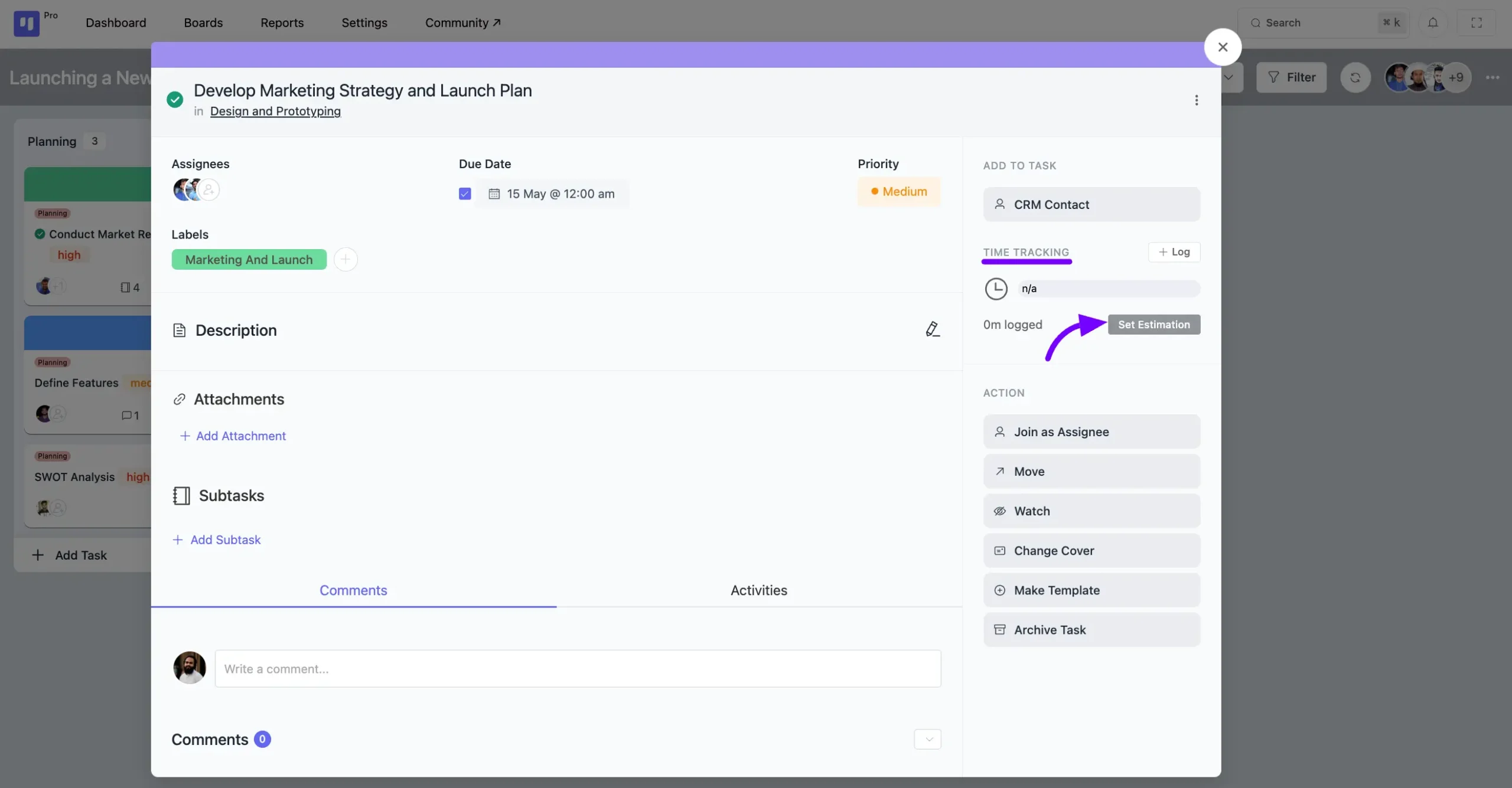
Now, navigate to the specific task where you want to add time tracking. In the task creation pop-up, you will find the Time Tracking feature on the right side.
Set Estimate Time #
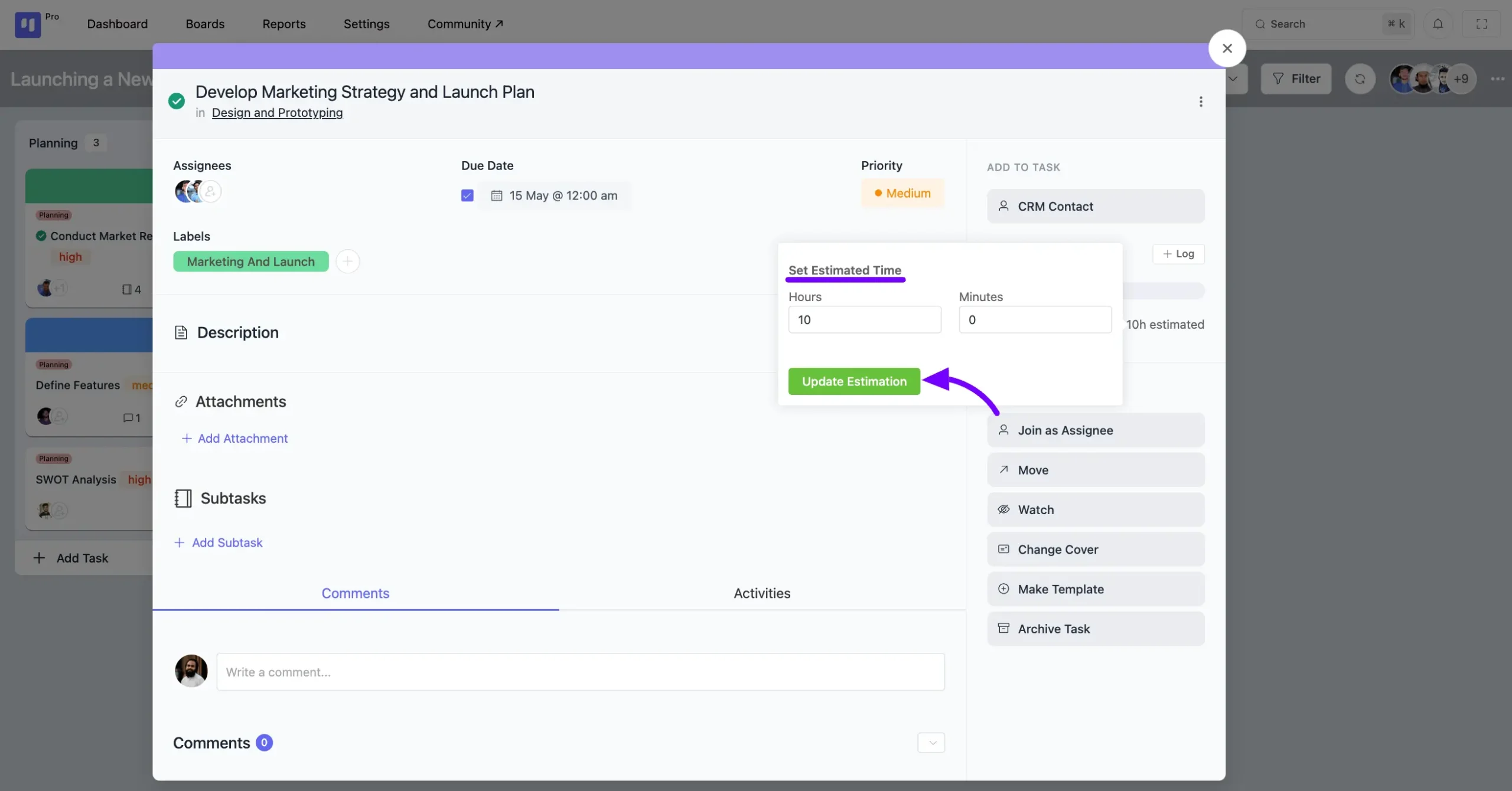
Click on the Set Estimate button. This allows you to set an estimated time for the task. Enter the estimated hours and minutes required to complete the task, then click on the Update Estimation button.
Set Log #
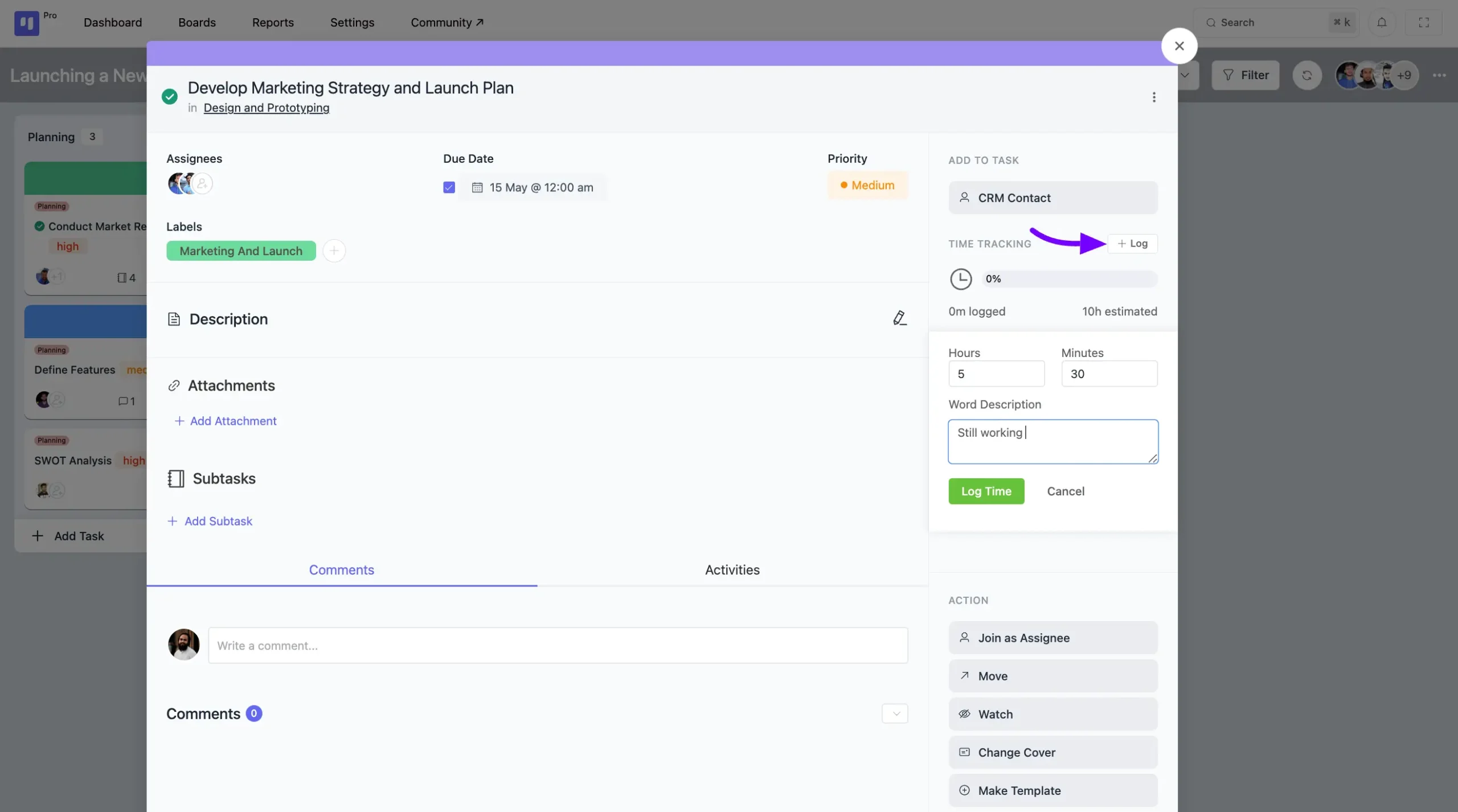
Next, you will find the Log option for the task. This allows you to record the amount of time you have worked and add a work description. Once you have entered the details, click on the Log Time button to save your log.
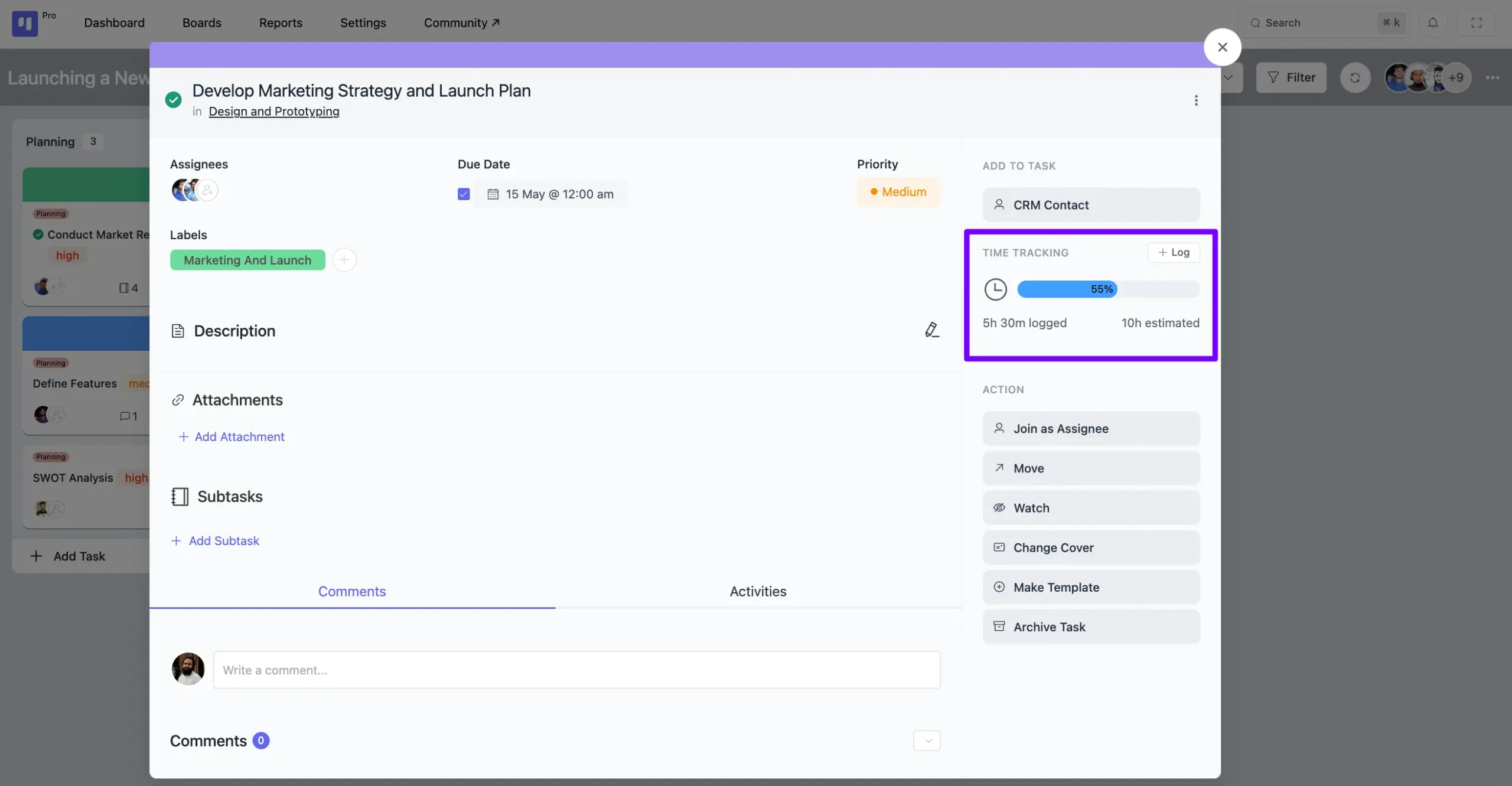
After that, you will see the time progress, which will be displayed based on the estimated time set for the task and the logged time you have added.
You’ll also receive a Timesheet Report that’s tailored to tasks and members within your boards. Dive into the documentation for further details.